Photo Editor - Retouch Photos
- 3.8
- Rating
- 10.00M
- Installs
- Free
- Price

 Analysis by App-foxy
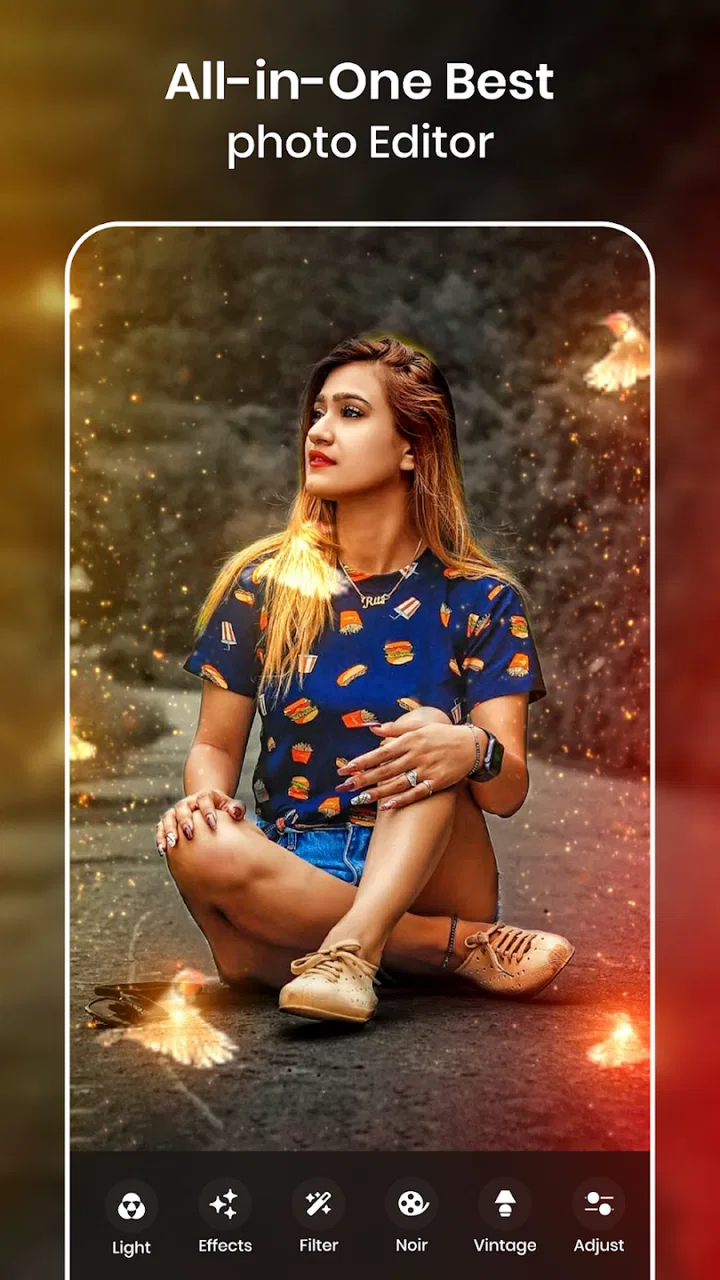
Photo Editor - Retouch Photos is the kind of Android app I open when a normal picture needs a quick visual lift rather than a complete redesign. Its focus is decorative editing: light effects, crown overlays, lighting frames, and other ways to make a portrait or social image feel more styled. I found it most useful when I already knew the mood I wanted and needed a fast route from an ordinary photo to something brighter and more playful.
It sits in the art and design category, and the free download makes it easy to try without committing money first. The app is made by Photo & Video Editors - Instant Solution, has an Everyone age rating, and works on Android devices running version 7.0 or later. That broad compatibility matters for people using older phones, although the experience can naturally feel less smooth on hardware that struggles with image processing.
My overall impression is mixed in a useful way. This is a decoration-first editor, not a full replacement for a serious retouching suite. If you want attractive lighting around a face, a frame for a profile picture, or a quick transformation for a story post, it can be convenient. If you expect precise skin correction, layers, professional color control, or detailed object removal, you will probably reach its limits quickly.
You May Also Like

 AccuWeather: Weather Radar
AccuWeather Review: A Quick, Clear Forecast for Everyday Decisions
For everyday plans, the best forecast is the one you can understand quickly. AccuWeather makes rain timing, radar, and local conditions easy to act on, with a few trade-offs.

 Hill Climb Racing
Why Hill Climb Racing Still Turns Crashes Into One More Run
A tiny car, a bumpy hill and one more upgrade: Hill Climb Racing keeps resurfacing because its simple chaos makes every near-miss feel personal.

 AliExpress - Shopping App
AliExpress Makes Global Shopping Feel Personal, but Shoppers Bear the Risk
AliExpress turns a global marketplace into a pocket-sized discovery engine. Its reach is useful, its shopping loop compelling, and its trade-offs easy to miss.

 Lords Mobile: Kingdom Wars
Lords Mobile Is a Kingdom-Building Routine, Not a Quick Match
A case-by-case verdict on the building, battles, device demands, and social commitments that make Lords Mobile rewarding for some players and exhausting for others.

 PDF Scanner app - TapScanner
TapScanner Makes Paperwork Easier to Capture, Check, and Share
TapScanner makes scanning with a phone feel less like a rescue operation and more like a dependable step in getting work done. Its capture tools are useful, though not flawless.

 Block Blast!
 Shows How Much a Puzzle Game Can Leave Out
A quiet grid game shows why puzzle players increasingly value instant clarity, repeatable skill and low-pressure play—and where the genre still needs to catch up.
More From Our News Desk
View All News


Starting with a simple photo-editing routine
I recommend beginning with one clear image rather than browsing effects without a plan. A well-lit portrait, a centered selfie, or a subject with enough empty space around it gives the light effects and frames room to work. Busy backgrounds can compete with decorative elements, while a heavily compressed image tends to make added glow look less natural.
My basic workflow is deliberately short. I choose the original photo, test a light effect at a low visual intensity, and then compare it with the unedited version before adding anything else. After that, I try a crown or lighting frame only if it supports the subject. This order prevents the common mistake of stacking every attractive option until the face becomes difficult to see.
The app’s appeal is strongest in this quick decision-making process. Rather than spending a long time correcting every detail, I can create a recognizable style with a few choices. A portrait that looks flat indoors may gain a warmer, more celebratory feel from a controlled light overlay. A simple profile image can become more expressive with a frame, provided the frame does not cover the eyes or hairline.
For an everyday example, imagine taking a friend’s birthday photo in a dim restaurant. I would crop the composition first if necessary, choose a light effect that follows the direction of the existing illumination, and then test a frame around the outer edge. I would save the cleaner version before experimenting further. That gives me a usable image even if the more dramatic edit ends up looking artificial.
One habit makes a noticeable difference: keep the original image untouched. Decorative editing is subjective, and an effect that looks exciting immediately can feel excessive after a few minutes. Working from a copy lets me compare versions and return to the natural photo without having to recreate the edit.
What to check before choosing an effect
The first setting worth checking is the visual strength of the effect, whenever the selected tool provides that kind of adjustment. I prefer subtle light around the subject instead of a bright wash across the entire picture. The goal is to guide attention, not to hide the photograph underneath. If an overlay changes the apparent skin tone or erases background detail, I treat that as a sign to reduce it or choose another style.
Placement is just as important as intensity. A crown positioned too low can compete with the forehead, while a light flare placed directly over the eyes can make a portrait look unfinished. I spend a few seconds moving decorative elements away from facial features and checking the image at its normal viewing size. An effect that seems harmless when zoomed in may dominate the picture when seen as a small social avatar.
Frames deserve a different approach. They work best when the photo already has a simple composition and enough separation between the subject and the edges. I avoid using a detailed frame on a picture with patterned clothing or a crowded background. In those cases, a simpler lighting treatment usually produces a cleaner result than another layer of decoration.
It is also worth checking whether the editor preserves the crop you intended after applying a frame or effect. Some decorative layouts naturally encourage a square composition, while the original photo may be vertical. I decide early whether the final image is meant for a profile picture, a post, a message, or personal storage. Designing for the destination helps me avoid cutting off hair, shoulders, or important background details at the end.
Because the app is free to install but includes in-app purchases ranging from $0.99 to $99.99 per item, I would pay attention to any purchase prompt before confirming an option. I do not treat every visible style as part of the basic experience automatically. A careful user should explore the free workflow first, understand which tools are available without payment, and only consider spending money if the added material genuinely fits their routine.
Repeatable habits that make edits faster
Experienced use is less about finding a secret button and more about repeating a sensible sequence. I usually make three passes: composition, atmosphere, and restraint. Composition means choosing the crop and checking where the face sits. Atmosphere means selecting the light or frame that matches the mood. Restraint means removing anything that distracts from the person or subject.
This sequence is quicker than trying random effects because every choice has a job. If the image already has strong colors, I focus on positioning rather than adding more visual noise. If the original lighting is dull, I test a light effect first and leave the crown or frame for a separate comparison. Keeping those decisions separate makes it easier to understand what actually improved the photo.
I also recommend creating a small personal shortlist of styles that work for your usual pictures. You do not need to remember every option. If a particular lighting treatment works well for indoor portraits and a certain frame suits square profile images, returning to those combinations saves time. The important point is to reuse a proven visual habit rather than applying the same decoration blindly to every photo.
For batches of similar pictures, I would edit one representative image before touching the rest. This reveals whether the chosen style works with the lighting, clothing, and background in that set. Applying a dramatic treatment repeatedly without testing it first can leave several photos with the same distracting flaw. A single trial image is a small investment that prevents repetitive cleanup.
Another practical trick is to judge the finished image away from the editing controls. I look at it as a thumbnail and at full size. At thumbnail size, the overall balance becomes obvious: is the face still the first thing I notice, or does the effect take over? At full size, I check edges, facial features, and whether the lighting looks pasted on. These two views catch different problems.
I would not use every tool simply because it is available. Light X effects, crowns, and lighting frames each communicate a different tone. Combining them can work for a playful party image, but it is usually too much for a professional profile or a quiet family photograph. The best results come from choosing one main visual idea and letting the other elements support it.
Where the app is genuinely useful
The strongest audience is someone who wants quick creative edits without learning a complicated desktop program. Teenagers and casual social-media users may enjoy the immediate visual change, while families can use frames and lighting effects for invitations, celebrations, or informal greetings. It can also help someone make a temporary profile image feel more personal without spending time on detailed manual retouching.
I see particular value in low-stakes images where style matters more than realism. A themed selfie, a party snapshot, or a playful message can benefit from an obvious decorative treatment. In these situations, the effect does not need to disappear into the photograph; it simply needs to look intentional and balanced.
The app is less convincing for work that depends on accuracy. I would not choose it as my main tool for product photography, business headshots, portfolio preparation, or images where exact color matters. A specialized retouching editor is better when you need controlled blemish removal, selective adjustments, non-destructive layers, or consistent output across many professional images.
It is also not the best choice if your main goal is a natural correction. A basic phone gallery editor may be more suitable for straightening, cropping, exposure, and simple color changes. A dedicated portrait editor may be better for skin texture and facial adjustments. This app makes more sense when the desired result is visibly stylized rather than nearly invisible.
Limits I noticed in the creative approach
The same simplicity that makes the app approachable can make it feel restrictive. Decorative effects are quick to apply, but they do not give me the same level of control as a more advanced editor. When an overlay needs exact masking around hair, glasses, or irregular objects, a basic effect-based workflow may not be enough. The result can look placed on top rather than integrated with the scene.
There is also a risk of visual sameness. If you rely on the most obvious crown or glow on every portrait, your images may begin to look interchangeable. I get better results by matching the treatment to the photo’s existing light and by leaving some images almost untouched. The app is a tool for adding character, not a reason to apply a filter automatically.
Performance can vary with the phone and the size of the image. On an older Android device, I would avoid keeping many image-heavy apps open while editing and would give the app time to finish processing before judging the result. If a preview feels slow, reducing the complexity of the composition is more practical than repeatedly tapping the same control.
The commercial model is another consideration. Since optional purchases can reach a high per-item price, I would be especially cautious about treating locked content as essential. The free experience should be evaluated on its own merits. If the available effects already cover your occasional needs, there is no reason to buy simply to collect more choices.
Privacy-conscious users should also follow a simple rule: review the permission requests shown by the operating system and grant only what is needed for the editing task. I do not assume that every photo app should receive broad access without thought. Keeping a separate folder of images selected for editing is a sensible habit when you want tighter control over which pictures are available to an app.
How it compares with familiar alternatives
Compared with a phone’s built-in editor, this app offers a more decorative direction. The gallery editor is normally faster for basic corrections because it is already part of the device, but it may not provide the same emphasis on crowns, lighting frames, and stylized light. I choose the built-in option when the photo only needs a crop or exposure adjustment, and this app when the image needs a visible theme.
Compared with a full mobile design suite, Photo Editor - Retouch Photos is easier to approach but less flexible. A larger design app usually gives more control over text, layers, masks, and composition. That extra power is valuable for posters or branded social content, yet it also creates more decisions. For a quick portrait decoration, I would rather use a focused tool than open a complex workspace.
Compared with a dedicated retouching app, the difference is even clearer. Retouching specialists are preferable for subtle skin cleanup and precise repairs. This app is better understood as a fast visual styling tool. Choosing between them depends on whether I want the viewer to notice a correction or enjoy an effect.
The current version is 2.1.0.1, and the app has been available since April 23, 2019. Its reach is substantial, with more than ten million installs and an average rating of 3.8 from roughly sixty-five thousand ratings. Those figures suggest that many people find the concept useful, while the middling average also fits my impression that the experience will depend heavily on expectations: casual users may appreciate the speed, while demanding editors may want more control.
My verdict after building a practical routine
I recommend Photo Editor - Retouch Photos to anyone who wants a free starting point for playful portrait styling and lighting-based decoration. I would install it for quick social images, themed selfies, and casual celebrations, especially on an older Android phone that meets the minimum system requirement. Its workflow is approachable, and the most satisfying results come from using one strong effect with careful placement.
I would skip it if you need professional retouching, highly natural corrections, detailed masking, or a dependable replacement for a complete design workspace. The app cannot turn a simple effect editor into a precision studio, and forcing it into that role will only create frustration. A built-in gallery editor or a specialized retouching tool may be the better choice for those jobs.
For my own use, the winning habit is simple: preserve the original, test one visual idea, check the image as a thumbnail, and stop before decoration overwhelms the subject. That approach makes the app feel faster and more reliable than browsing effects at random. Photo Editor - Retouch Photos works best when I treat it as a focused finishing tool, not as an all-purpose photo laboratory.
FAQs for Photo Editor - Retouch Photos
01What features does Photo Editor - Retouch Photos offer?
Photo Editor - Retouch Photos provides a comprehensive suite of tools for enhancing your images. These include filters, cropping, background removal, and retouching features like blemish removal and skin smoothing. Additionally, it offers advanced options like color correction, text overlays, and artistic effects, making it a versatile choice for both casual and professional users.
02Is Photo Editor - Retouch Photos user-friendly for beginners?
Yes, Photo Editor - Retouch Photos is designed with an intuitive interface that caters to beginners. The app offers step-by-step guides and tooltips to help users understand each feature. Its clean layout and user-friendly design ensure that even those new to photo editing can easily navigate and apply various enhancements to their images.
03Are there any in-app purchases or subscriptions required?
While Photo Editor - Retouch Photos is free to download, it offers in-app purchases and subscription options to unlock premium features. These may include advanced editing tools, exclusive filters, and ad-free usage. Users should review the pricing details in the app store’s description to understand the costs associated with these additional features.
04Does Photo Editor - Retouch Photos support high-resolution image editing?
Yes, the app supports high-resolution image editing, allowing users to work with large files without compromising on quality. This makes it suitable for professional photographers and designers who need to maintain image integrity while applying edits or enhancements. Ensure your device has sufficient storage and processing power to manage high-res files effectively.
05Can I share edited photos directly from the app?
Absolutely, Photo Editor - Retouch Photos offers seamless sharing capabilities. Users can directly upload their edited images to social media platforms like Instagram, Facebook, and Twitter. Additionally, the app allows saving edits in various formats and resolutions, making it simple to share via email or other messaging apps.
Pros
- User-friendly interface for quick edits.
- Wide range of filters and effects.
- Supports high-resolution image exports.
- Includes advanced retouching tools.
- Frequent updates with new features.
Cons
- Contains in-app purchases for advanced tools.
- Occasional ads can disrupt workflow.
- Limited free features without subscription.
- Some filters lack customization options.
- Requires internet for full functionality.

Photo Editor - Retouch Photos
Gallery